
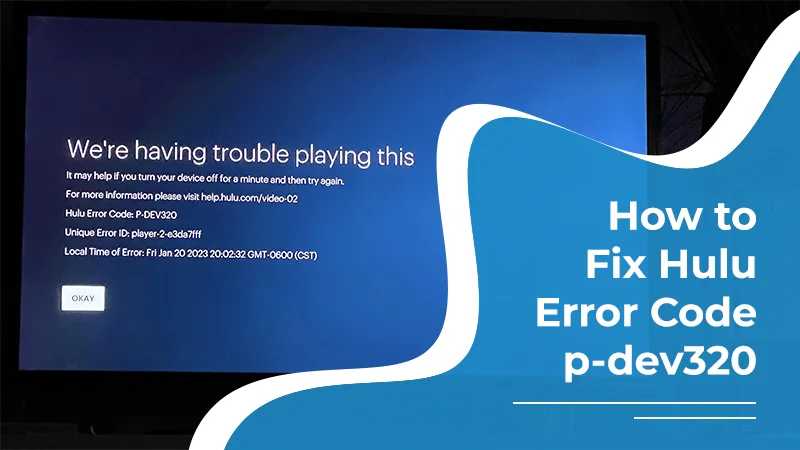
Hulu Error Code p-dev320: Causes, Fixes, & Troubleshooting Guide!
Suppose that you and your friends are ready to start your favorite movies on Hulu. But suddenly, the screen becomes blank. You started worrying about this, and then you googled it. You find that this issue is the Hulu error p-dev320. This error occurs when there is a communication error between the Hulu server and its device. Most importantly, users may encounter this frustrating problem on Roku, PlayStation, mobile devices, Smart TVs, browsers, and Fire TV Stick.
There are numerous reasons why users have to face this issue. These are like, individuals may have poor internet connectivity, or they are utilizing an outdated application.
You can easily fix this issue by following these common methods.
- Start your device again.
- Clear the cache.
- Or, if required, you can reinstall the Hulu application.
Read on this tutorial to get rid of this frustrating error code. By the end of this guide, you will know what causes this type of error and what you can do.
Key Takeaways
- A communication error between your device’s app and the server of Hulu.
- Some common fixes are:
- Check whether Hulu is down or not.
- Update your device or the app software you are using.
- Check internet connectivity.
- Connect customer care for solving Hulu server disruptions.
- Check Device-specific compatibility.
- This error usually occurs while live streaming, playing back, or watching your preferred shows.
- Related codes, such as p-dev322 or p-dev318, may cause the same error.
What Is Hulu Error Code p-dev320?
Let us begin by describing this common error code in more detail. The Hulu p-dev320 error indicates a problem with Hulu and the web player. In addition, it can occur due to connectivity issues in your area or if Hulu servers are down. Sometimes, a problem with the Hulu application itself gives rise to this error. Here are the reasons you will encounter it.
Common Causes of Hulu Error Code p-dev320
This error can occur due to the listed reasons. Let’s discuss each of them.
- The user’s WiFi or cellular data is not working properly.
- You might have an outdated or corrupted installed app on your preferred device.
- Widespread outage from Hulu’s end.
Usage of Proxy or VPN extensions that are blocking the signal.
7 Methods to Fix Hulu Error Code p-dev320
You can employ several ways to get past this Hulu error p-dev320 on your device. Users of various devices can use these techniques.
1. Check whether Hulu is down
A foolproof way to start fixing this error is by finding out if the service is down. Connection issues like p—dev320 often arise when the service experiences an outage. To know if the Hulu servers are down, go to the Hulu Support Twitter page. Here, use the hashtag #huludown to check if the servers are working correctly.
You will easily find out whether the streaming service is under maintenance. If it is, the issue will get resolved on its own in a few hours.
2. Boost your internet connectivity
Find out whether you have a good working internet connection. In its absence, the app cannot communicate with the Hulu service.
- Look at the wireless status icon at the top portion of your device.
- You can also test the connection by using a different app on the same device that runs with the internet.
- If your connection strength is too low, start your Wi-Fi router and modem again.
- Take them out of their outlets and plug them in after two minutes.
- Let your internet connection be restored.
3. Delete data and cache
Corrupt data and cache are another reason for the Hulu error code p-dev320. So, whichever device you are on, ensure to delete its cache and data. This will let you stream movies on Hulu.
- iOS
- head to ‘Settings’ followed by ‘General.’
- Choose ‘Storage’ followed by ‘Hulu.’
- Now, delete the app.
- Go to the App Store to install it.
- Android
- Android users should go to the settings of their device.
- Now, choose ‘Apps.’
- Next, select the ‘See all apps’ option, followed by ‘Storage and cache.’
- Choose the ‘Clear storage’ option and then choose ‘Clear cache.’
- Fire TV
- Head to the settings of your Fire TV and choose ‘Applications.’
- Now, select ‘Manage installed applications’ and choose Hulu.
- Now, tap ‘Clear cache’ and then ‘Clear data.’
4. Restart Hulu
Another easy solution is restarting Hulu, which can fix temporary glitches with the app. Many users have found that Hulu error code p-dev320 goes away after they reopen the application. You’ll need to follow different steps to restart Hulu on your device based on your operating system.
Either way, the process is quite easy. You simply need to exit the app completely and then reopen it. After that, stream any content of your choice.
5. Install the latest Hulu updates
If your streaming service does not update automatically, you’ll need to do so manually. This process is simple, and you can perform it via the settings of your app.
- Android
- Head to the Play Store of your Android device.
- Now, choose the three-line icon on the top portion.
- From here, choose ‘My apps & games.’
- Now, to update your applications, including Hulu, tap the ‘Update all’ button.
- Alternatively, you can scroll straight to Hulu and tap on it to update only this app.
- iOS
- iOS device owners should head to the App Store of their devices.
- Here, from the top portion, touch the Profile icon.
- From the app list, choose Hulu.
- Now, tap ‘Update’ if you see the option there.
- But if you see ‘Open’ and not ‘Update,’ your app is already updated.
- In such a case, there is another cause for the p-dev320 error code.
6. Turn off the VPN
Another way to fix network issues that cause p-dev320 errors is disabling the VPN. Here’s how to disable it on varied devices.
- iOS
- head to settings on your iPhone and choose ‘General.’
- Choose ‘VPN & device management.’
- Now, slide off the VPN status to turn it off.
- Windows
- Head to settings and choose the ‘Network & Internet’ option.
- From the left menu, choose ‘VPN.’
- Now, choose the VPN connection you want to end and tap ‘Disconnect.’
- Android
- Access the settings of your device and choose ‘Network & Internet.’
- Touch the VPN option and slide it off. This will switch it off.
Device-Specific Troubleshooting
Check out all the guidelines that we have listed for the device-specific.
For Roku Devices:
- Open your Roku device.
- Move towards the Hulu channel.
- Tap on the * Star icon.
- Tap on Remove Channel.
- Confirm that you are removing the channel.
Important Point to be considered: Don’t directly power off the TV. Navigate to Settings. Then, tap on System. Next, go to Power. After that, choose System Restart.
- Now, open the preferred Roku device again.
- Head to Streaming Channels and search for Hulu.
- Add it.
For Amazon Fire TV Stick:
- From your home screen, navigate to Settings.
- Choose Applications.
- Opt for Manage Installed Applications.
- Scroll a little bit and look for Hulu.
- Opt for Force Stop.
- Tap on Clear Cache.
- Choose Clear Data.
- Start your application again.
Note: Mention the login credentials to move further.
For PlayStation:
- Look for Hulu on your home screen.
- Tap on Options.
- Choose Delete.
- Power the console completely off.
- Remove the plug from the power source for 2 minutes.
- Plug back in and start using your PlayStation.
- Download Hulu again from the Media tab/Store.
When to Contact Hulu Customer Support?
Even after trying the above troubleshooting methods and encountering the issue back to back. In this case, individuals must seek help from the customer support of Hulu.
What you need to do is to contact them on their social media channels or simply visit their official page, where you will find the contact us section. Tap on it and fill out all the necessary information so that Hulu customer support can help you out.
Time to Wrap Up!
If you are still getting Hulu error code p-dev320, check out our detailed guide that we have prepared for you. You can clear the Hulu app cache if it is required.
Otherwise, it’s the best way to check your internet connection, and make sure to reinstall the Hulu app to fix all issues. If all these provided methods don’t work for you, it’s high time to connect with Hulu customer support.
All Questions Are Answered Here!
All your queries will be cleared in the following section. Moreover, you will be able to fix Hulu error Code p-dev320 effortlessly.
Q1. How do I clear my Hulu cache?
Ans. You can easily clear the Hulu cache by reading these instructions below.
- Open the Settings of your device.
- Look for Hulu.
- Navigate to Storage.
- Click Clear Cache.
Q2. Why does Hulu keep giving me an error code?
Ans. Mostly, Hulu error codes are caused due to some problems with your device’s app. Sometimes, there may be some network issues or server-side disruptions.
Q3. Why is Hulu not working but everything else works?
Ans. Clearing cache and data is the best way if you find that your Hulu app is not working properly.
Q4. How do I refresh Hulu?
Ans. These are the steps that will help you to refresh Hulu.
- Switch off the specific device that you use to stream Hulu.
- If required, switch off the router as well as the modem.
- Remove the plug of the device from the power source.
- Wait for a while.
- Restart the device and start streaming Hulu.
Q5. Why is Hulu so glitchy lately?
Ans. If you are finding that the Hulu app is so glitchy, it’s because you are using a bad quality of internet connection.
Q6. Is my internet causing the Hulu problem?
Ans. Yes, maybe! Consider using a speed test of your internet connection to determine whether it is causing the problem or not.
Q7. Does Hulu need to be reinstalled?
Ans. Yes! Sometimes, there is a requirement to uninstall the Hulu app and then install it. As a result, it will be beneficial for you to get rid of Hulu Error Code p-dev320.
Recent Posts

Recent Post
How Does Snap Score Work? Snapchat’s Hidden Algorithm Explained
Snap Scores work on proprietary engagement metrics, such as the number of snaps you are receiving, sending, or opening. Similar to that, text messages are...
What Does PMO Mean on TikTok? The Essential 2026 Slang Guide
Every day, new acronyms become famous on TikTok, and PMO is one of them. If you have ever seen PMO in captions, comments, or even...